Skip to content Skip to main navigation Skip to footer

Blog

Log file setup for Check Point Syslog in Cyfin

In order to set up Check Point Syslog firewall logs in Cyfin, you must first get the CPLogToSyslog utility. Contact Check Point Support to request the hotfix that contains the utility. If you are running Check Point R77.30, the utility may not be needed. Confirm with Check Point Support. The utility gives Check Point the ability to port the syslog data from the firewall to a specified IP address and port. You will want to forward the “URL filtering” logs from Check Point to the Cyfin syslog server.

Once the CPLogToSyslog utility is installed, Check Point must be configured to have the syslog data pointed to an IP address and port. These will point to the Cyfin server’s IP address and port of choice (default port is UDP 514 for syslog). Once this part is completed in Check Point, you can then open Cyfin, go to Data Management – Log Data Source – Setup, and run through the Log Data Source Setup wizard. Select the Check Point Syslog log file type and the same port you chose in the Check Point setup.

Upon completing the Log Data Source Setup wizard, you should start to see data in the file “SyslogXXXXXXX.txt” in the log file directory that you chose in the wizard.
CyBlock/Cyfin forcing memory increase after running a report

If you are running a low-level audit detail report on a group and not on just users, you may be required to increase the product memory in CyBlock/Cyfin. This is due to the reporting engine attempting to run a report on each user in the group all at once, instead of one after the other.

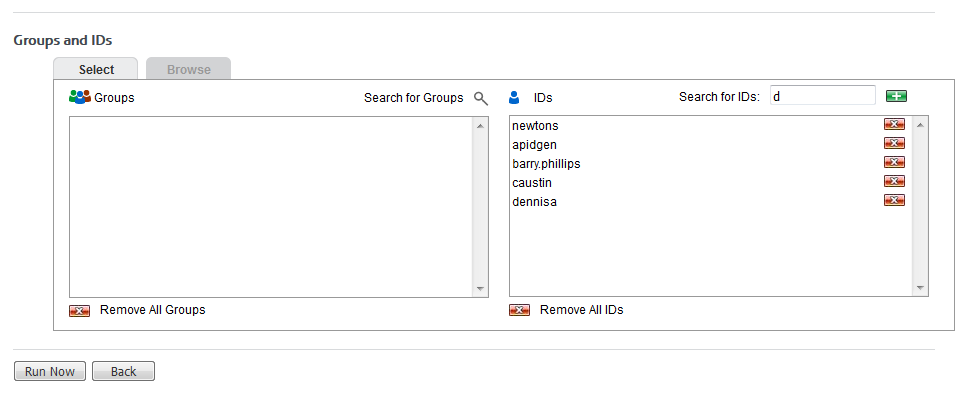
The recommended way of running low-level reports is to highlight the group(s) and then select the users in the IDs box under Groups and IDs, making sure no groups are selected in the Groups box. See the example below.

lowLevelUserReport


Error initializing list (XIE0R): Import error…

The following list load error has been seen in the old UI version 8.8.3a and earlier:

“Error initializing list (XIE0R): Import error on line X,XXX,XXX of file C:\Program Files\Wavecrest\CyBlock\wc\cyblock\plugin\~temp.bin: The statement was aborted because it would have caused a duplicate key value in a unique or primary key constraint or unique index identified by ‘SQL:XXXXXXXXXXXXXXXXX’ defined on ‘CONTROLLIST’

The above error will show immediately after logging on to the UI, indicating an issue with the list where it must be purged, and the latest list 8 must be downloaded. To resolve the issue, please do the following:

For CyBlock:

  1. Stop the CyBlock service.
  2. Go to …Wavecrest\CyBlock\wc\cyblock\db\plugin.
  3. Remove all files/folders from the plugin directory so that it is empty.
  4. Start the CyBlock service.
  5. Log on to CyBlock.
  6. Go to Administration – URL List – Download – Manual – Download Now.


For Cyfin:

  1. Stop the Cyfin service.
  2. Go to …Wavecrest\Cyfin\wc\cf\db\plugin.
  3. Remove all files/folders from the plugin directory so that it is empty.
  4. Start the Cyfin service.
  5. Log on to Cyfin.
  6. Go to Administration – URL List – Download – Manual – Download Now.


Once these steps are complete, you should see a “Category Resolution is Ready” message in green.

How to interpret cloud report dates/times for your time zone

In Wavecrest reports, dates and times are displayed in several places, such as in the Report Request Parameters–Current Date/Time, Report Start Date/Time, and Report Stop Date/Time. In addition, in Audit Detail reports, all hits including visits have a date and time associated with each URL that is displayed.

Cloud Customers

For cloud customers who are using a CyBlock Cloud instance that is not located in their local time zone, the dates/times in reports are specific to the time zone set in your cloud account, that is, the time zone in which your Web activity is occurring.

For example, if you are in Pacific Time, running a User Audit Detail report for the selection, Previous 24 Hours, and going through central.cloud.cyblock.com which is in Central Time, the URLs in the report would have times of your local time if this time zone is set in your cloud account. So if the date is Sep 11 and your local time is 11:02 a.m., “Previous 24 Hours” would be Sep 10, 11:00:00 a.m. to Sep 11, 10:59:59 p.m. in Pacific Time, and the URL times would span this time period.

The dates and times in the report e-mail will also reflect the time zone set in your cloud account.

Hybrid Cloud Customers

For Hybrid cloud customers, reporting is based on your local CyBlock instance time. Reports will show all traffic as it occurred in the time zone of each of your cloud accounts for the same local CyBlock instance time. When running reports for all cloud accounts, managers can see traffic for all time zones at the same time and hour.

For example, if your local CyBlock instance time is Eastern Time, cloud Web activity is in Central Time and Mountain Time, and you are running a Site Analysis report for 10:00 a.m. for all configurations, the report will show 10:00 a.m. Central Time traffic and 10:00 a.m. Mountain Time traffic.

If you have any questions, please contact Technical Support at (321) 953-5351, Ext. 4 or support@wavecrest.net.

Upgrading and moving the product from an old to a new server

When attempting to move an older version of the product to a new server, perform the following steps:

  1. Upgrade your current installation to the latest 6.x.x or 8.x.x release (6.8.3a or 8.8.3a).
  2. Download the latest release version of the product from the Download page of our Web site www.wavecrest.net.
  3. Run the installation package on your current installation to get to the latest release.
  4. In the new interface, create a restore point by going to the Settings – Restore Points – Download screen and clicking Create under Create Restore Point.
  5. Click the new restore point listed under Choose Restore Point to Download.
  6. Download and install the latest version of the product on the new server.
  7. Copy the restore point file to …\wc\[cf|cyblock]\db\restore.
  8. Go to the Settings – Restore Points – Manage screen, and select the correct date of the file to restore.
  9. Select the Configuration Only option, and click Submit.

After the configurations have been restored, you should now have replicated your old installation configuration onto your new server.

If you have any questions or issues, please contact Technical Support at (321) 953-5351, Ext. 4 or support@wavecrest.net.

Using the PAC file in the new UI

When upgrading an older version 6.x.x of CyBlock to the newer version 9.x.x, the path for the PAC file needs to be updated in the browser settings, if you are using the PAC file to filter Web traffic.

  1. For the automatic proxy configuration in the browser, use the following URL:

http://<IP of Proxy Server>:8080/proxy.pac

  1. Replace port 8080 if this is not your current proxy port.
  2. To view your current proxy port, go to the Settings – Proxy – PAC File screen. The full URL is displayed for your PAC file.

What are zero-byte visits in audit detail reports?

When viewing an audit detail report, the number of bytes received from the Internet in response to Web requests is shown in the Size column in the Audit Detail section of the report. It includes all content that was used to render the Web site, which is referred to as “payload,” but does not include the accompanying HTTP header information. HTTP headers contain information about the request or response that allows servers to provide the right data and browsers to render the content properly. Occasionally, servers can respond with only HTTP header information to inform the browser that there is no content, or redirect to a new URL for the content. These visits show in the audit detail report as zero bytes (0 B) in the Size column. While there is no payload for these requests, they are valid entries in the report because the browser requested the data and received a valid HTTP response.

If you have any questions, please contact Technical Support at (321) 953-5351, Ext. 4 or support@wavecrest.net.

Filtering with allow and block lists in CyBlock

In the past, custom categories may have been used to control user’s Web activity by adding URLs to those categories to serve as white lists or black lists. This process changes the category of the URLs in custom categories and is no longer necessary with the white list/black list feature in CyBlock. The white list/black list feature allows you to create a white list as well as a black list in the same Web category policy. You may enter and save both allowed and blocked URLs in the policy without affecting the categorization of the URLs.

White lists and black lists allow you to create exceptions to your blocking policy. A white list can be used to allow access to specific sites while blocking all others in the corresponding category. A black list can be used to block access to specific sites while allowing all others in the corresponding category. For example, if you blocked the Search Engines category, but you wanted to allow access to Google, then you would type *.google.com in the Allowed URLs box to allow access to that Web site.

  1. Go to Web Management – Filter – Categories.
  2. Select the policy to which you want to add a white list and/or a black list.
  3. In the Allowed URLs box, enter the URLs you want to allow.
  4. In the Blocked URLs box, enter the URLs you want to block.
  5. Click Submit to apply your changes.

Your users’ Web traffic will now be filtered according to the URLs in your white and black lists.

If you need assistance, please contact Technical Support at (321) 953-5351, Ext. 4 or support@wavecrest.net.

Setting up the Wavecrest certificate for cloud users

If you are a CyBlock Cloud customer, you probably want to allow your cloud users to access secure sites (https://) and need to inspect this HTTPS traffic to ensure that your network is protected from Web threats and to enforce your AUP. The SSL Inspection feature in CyBlock Cloud allows you to inspect this HTTPS activity, but requires that you install the Wavecrest root certificate on your cloud users’ browsers. If the Wavecrest root certificate is not installed in the browser, a certificate warning message will be issued that must be accepted in order to display your blocking message.

Another reason to install the Wavecrest root certificate is if using cookie authentication to confirm the identity of users accessing the Internet through your network. The cookie authentication logon page that is presented to your users is a secure page and is automatically inspected. Therefore, to avoid your users receiving a certificate error, install the certificate on your users’ browsers.

The certificate may be installed in the following ways:

  • Through the browser
  • Using Active Directory GPO
  • Using Microsoft Management Console

The Wavecrest Certificate Installation Guide provides instructions on installing the certificate using Internet Explorer/Google Chrome and Firefox, importing it using Active Directory, and installing it in Windows 7 Professional/Enterprise.

If you need assistance, please contact Technical Support at (321) 953-5351, Ext. 4 or support@wavecrest.net.

How to troubleshoot Web sites that do not authenticate

This applies to CyBlock Software, CyBlock Appliance, and CyBlock Cloud.

If you have troublesome Web applications that fail to authenticate, you can turn off authentication for that specific IP address to determine if it is an authentication problem.

  1. Go to User Management – Authentication.
  2. On the Rules tab, create a rule as follows:
    • For the network definition, select IP Address/Subnet.
    • For the type of authentication, select Disabled.
    • Enter the IP address of the computer that is experiencing an issue.
    • Add the rule.
  3. Try to access the site again.

If the test is successful, that is, you are able to get to the site, the problem is authentication, and you can add the URL to the Bypassed list in the Authentication Manager.

If the test is unsuccessful, the issue is not authentication, but proxying/filtering. Contact Technical Support for assistance.

For CyBlock Cloud, customers will need to contact Technical Support to have troublesome URLs added to the Bypassed list.


See also: