Skip to content Skip to main navigation Skip to footer

Blog

Laptop users and off-site access (PAC file)

When users are outside the network, they will not be able to access the Internet if proxy settings are in place. The proxy auto-config (PAC) file allows users to access the Internet directly after a time-out period, if no proxy is found.

  • For version 9.0.5 and later, use http://<IP of Proxy Server>:8080/proxy.pac.
  • For version 6.8.3a and earlier, use http://<IP of Proxy Server>:7999/pac/proxy.pac.


To bypass the proxy for certain domains, use the exceptions field in the CyBlock interface.

  • 9.0.5 and later: Settings – Proxy – PAC File
  • 6.8.3a and earlier: Advanced Settings – Proxy Settings – PAC File Configuration

Error: Unable to verify latest version

When performing a product update through the interface, you may be presented with the error “Unable to verify latest version.” This can appear when using the machine name in place of the IP address to access the interface.

  • Change http://servername:7999 to http://IPaddress:7999 and attempt the update again.


If you still experience a problem, please contact Technical Support.

Broken links in Cyfin or CyBlock interface

If you are experiencing broken or missing links within the product interface, Active Scripting may be disabled in the browser.

To enable Active Scripting:

  1. Go to Tools – Internet Options – Security – Internet – Custom Level.
  2. Look for the Scripting section and enable the Active Scripting.

If the problem persists, please contact Technical Support.


Migrating a Cyfin or CyBlock installation

To maintain configurations during a server migration, first navigate to the db folder:

CyBlock: …\Wavecrest\CyBlock\wc\cyblock\db
Cyfin: …\Wavecrest\Cyfin\wc\cf\db

Back up the folders and files listed below. If you do not see a folder or file, it can be ignored.

Folders

Cats
custCats
gai
preferences
sched
xml

Files

accessAccounts.xml
authentication.xml
classificationPolicies.xml
customUrlEntries.xml
excludewebsites.txt
ldap.xml
logfilesManager.xml
policies.xml
timeframeFilters.xml
wcuck.cfg


Once the product has been installed on the new server, perform the following steps.

  1. Stop the Cyfin or CyBlock service.
  2. Navigate to the db directory following the path listed above.
  3. Merge the backed up folders and files with those of the new server.
  4. Start the Cyfin or CyBlock service.

Modifying the blocking message

You can customize the blocking message seen by your users by navigating to Web Management – Filter – Message¹.

Note:  The default blocking message does not allow for outside linking to files.


¹ For version 6.8.3a and earlier:

  1. You can edit the standard blocking message by opening …Wavecrest\CyBlock\wc\cyblock\db\stdBlkMsg.htm.
  2. Alternately, you can create your own HTML page and link to it by navigating within the product to Advanced Settings – Filter Settings – Web Blocking Message.

Filtering by IP addresses

To filter by IP addresses instead of user IDs:

  1. Go to User Management – Authentication¹ ².
  2. In the Rules tab, hover over the applicable network definition and click Edit.
  3. For Type, select Disabled.
  4. Click Edit.

Note:  The Authentication Manager allows for hybrid authentication. You can define a range of IP addresses to be authenticated by NTLM, the cookie, or not at all. To add a new rule, click the green button button.


¹ For version 9.0.5: Go to User Management – Authentication – Proxy, and set Login Names to Disable.

² For version 6.8.3a and earlier: Setup – Proxy.

Managing Firefox with Active Directory GPOs

To get Group Policy support for Firefox, you can load the ADM files. FirefoxADM is a way of allowing centrally managed, locked and/or default settings in Firefox via Group Policy and Administrative Templates in Active Directory. Although Firefox does not support GPOs natively, this open source ADM file will allow automatic configuration through GPO.

Downloading the ADM files

You can download and extract the latest files, including detailed documentation, at http://sourceforge.net/projects/firefoxadm.

Turning on Group Policy

  1. On the Active Directory server, open Group Policy Management by going to Start – All Programs – Administrative Tools.
  2. Right-click the group to which you would like to add this GPO and click Create a GPO in this domain, and Link it here…
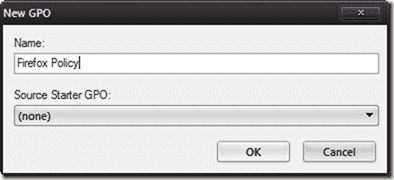
New Firefox policy

  1. Enter a descriptive name for the policy and click OK.
  2. Right-click the newly created policy and click Edit. This will open the Group Policy Management Editor.
  3. Expand User Configuration – Policies and right-click Administrative Templates. Select Add/Remove Templates…, click Add… on the dialog box, and then browse to where you extracted the FirefoxADM files. You will notice that there are two ADM files–firefoxdefaults.adm and firefoxlock.adm.
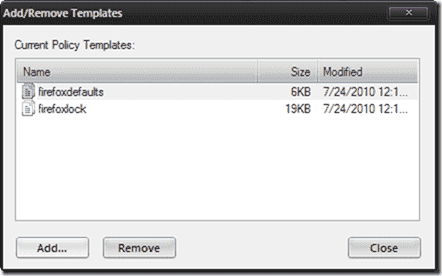
firefoxdefaults.adm and firefoxlock.adm

  1. Select both of them, and click Open and then Close after the files have been imported.
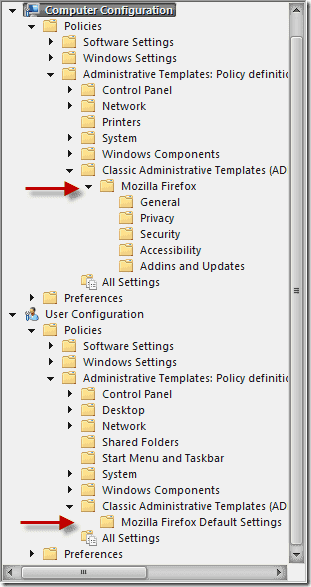
Group Policy settings Firefox

  1. Notice that the Firefox settings are under User Configuration – Policies – Administrative Templates – Classic Administrative Templates, as well as under Computer Configuration – Policies – Administrative Templates – Classic Administrative Templates, and that they are not the same.

As their locations in the tree suggest, the computer configuration will configure all defaults for Firefox on a machine in the group. The user configuration is user specific.

How FirefoxADM overcomes the lack of native support is addressed next. When you extracted the zip file, you should have noticed some extra VBS files, specifically firefox_login.vbs, firefox_logout.vbs, firefox_shutdown.vbs, and firefox_startup.vbs.
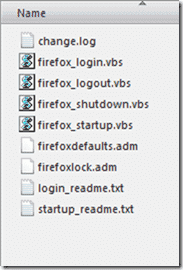
VBS files

  1. To make these configuration changes, VB scripts are used to configure Firefox during logon, logoff, startup, and shutdown. These scripts should be imported to their correct locations inside the policy.
  2. In Group Policy Management Editor, navigate to Computer Configuration – Policies – Windows Settings and select Scripts (Startup/Shutdown).
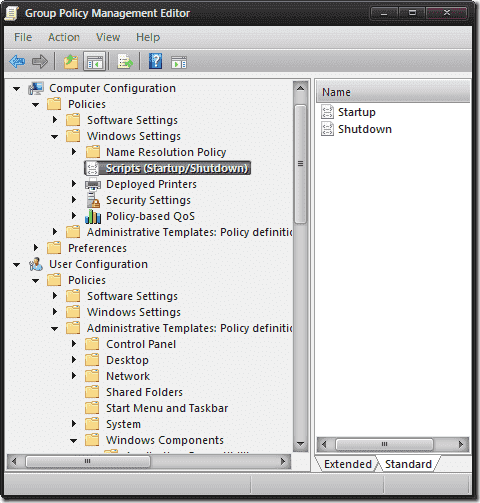
Startups Scripts

  1. Double-click Startup in the right pane. A Startup Properties box will appear. Click the Add… button on the right.

Add Firefox startup script

  1. An Add a Script box will appear. Click the Browse… button, locate the firefox_startup.vbs file you extracted earlier, and double-click it. Click OK to close the box.
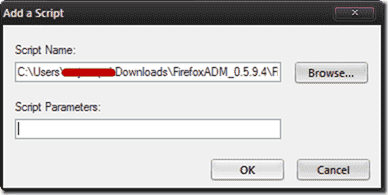
Add a Script

  1. Click the OK button again to close the Startup Properties box. Repeat the steps above for the Shutdown script.
  2. Next, navigate to User Configuration – Policies – Windows Settings and select Scripts (Logon/Logoff). Then repeat the same steps as above pairing Logon with firefox_login.vbs and Logoff with firefox_logout.vbs.
  3. You have just configured GPO for Firefox. Now those scripts will run when the computer is started and shut down when a user logs on and logs off.

Note:  Wavecrest Computing is providing this for informational purposes only. Please use at your own discretion.