Skip to content Skip to main navigation Skip to footer

Blog

Configuring Zscaler for Cyfin Syslog

Zscaler uses a virtual machine, Nanolog Streaming Service (NSS), to stream logs from the Zscaler service and deliver them to Cyfin Syslog.

To collect logs for Zscaler Web Security, perform these steps detailed in the following sections:

  1. Configure Zscaler NSS.
  2. Connect the Zscaler NSS feed to Cyfin Syslog.


Configure Zscaler NSS

NSS is maintained and distributed by Zscaler as an Open Virtual Application (OVA). To stream logs to Cyfin Syslog, follow the steps outlined in the NSS Configuration Guide at https://support.zscaler.com/hc/en-us…guration-Guide.


Connect the Zscaler NSS Feed to Cyfin Syslog

Once you have configured the Zscaler NSS, now add a feed to send logs to Cyfin Syslog using the following steps.

  1. Log into your Zscaler NSS system.
  2. Go to Administration – Settings – Nanolog Streaming Service.
  3. From the NSS Feeds tab, click Add.
  4. In the Add NSS Feed dialog:
    • Feed Name. Enter a name for your NSS feed.
    • NSS Server. Select None.
    • SIEM IP Address. Enter the Cyfin IP address.
    • Log Type. Select Web Log.
    • Feed Output Type. QRadar LEEF is the default.
    • NSS Type. NSS for Web is the default.
    • Status. Select Enabled.
    • SIEM TCP Port. Enter the Cyfin Syslog TCP port number.
    • Feed Escape Character. Leave this field blank.
    • Feed Output Format. The LEEF format is displayed.
    • User Obfuscation. Select Disabled.
    • Duplicate Logs. Disabled by default.
    • Timezone. Set to GMT by default.
  5. Click Save.

Additional Resources

Configuring Cisco Firepower logs for Cyfin Syslog

The following steps pertain to Cisco Firepower Threat Defense and are required to forward these logs to Cyfin Syslog Server:

  1. Select Devices – Platform Settings and create or edit a Firepower Threat Defense policy.
  2. Select Syslog – Syslog Server.
  3. Check the Allow user traffic to pass when TCP syslog server is down check box to allow traffic if any syslog server that is using the TCP protocol is down.
  4. Enter a size of the queue for storing syslog messages on the security appliance when syslog server is busy in the Message queue size (messages) field. The minimum is 1 message. The default is 512. Specify 0 to allow an unlimited number of messages to be queued (subject to available block memory).
  5. Click Add to add a new syslog server.
    • In the IP Address drop-down list, select a network host object that contains the IP address of the syslog server.
    • Choose the protocol (either TCP or UDP) and enter the port number for communications between the Firepower Threat Defense device and Cyfin syslog server.
    • The default ports are 514 for UDP and 1470 for TCP. Valid nondefault port values for either protocol are 1025 through 65535.
    • Check the Log messages in Cisco EMBLEM format (UDP only) check box to specify whether to log messages in Cisco EMBLEM format (available only if UDP is selected as the protocol).
    • Add the zones that contain the interfaces used to communicate with the syslog server. For interfaces not in a zone, you can type the interface name into the field below the Selected Zones/Interface list and click Add. These rules will be applied to a device only if the device includes the selected interfaces or zones.

    Note:  If the syslog server is on the network attached to the physical Management interface, you must type the name of that interface into the Interface Name field below the Selected Security Zones list and click Add. You must also configure this name (if not already configured), and an IP address, for the Diagnostic interface (edit the device from the Device Management page and select the Interfaces tab).

    • Click OK.
  1. Click Save.

You can now click Deploy and deploy the policy to assigned devices. The changes are not active until you deploy them.

Click here for more information from Cisco.

Additional Resources

Check Point Log Exporter

If you are running Check Point R77.30 or later, you must first use Check Point Log Exporter for exporting Check Point logs over syslog to Cyfin. Click here for the instructions from Check Point Support.

Important Notes

Commands should be run in an SSH session switched to Expert mode.

Installation

Ensure that the Log Exporter is installed on a log server for Check Point R77.30 and R80.10. Log Exporter is already integrated in R80.20.

Basic Deployment

In order to configure a Cyfin target for the logs, run the following on the log server:

cp_log_export add name cyfin_syslog target-server <cyfin_ip> target-port 1455 protocol udp format syslog –apply-now

where <cyfin_ip> is the IP address of your Cyfin server

Helpful Tools

  • To remove the exporter, run:

cp_log_export delete name cyfin_syslog –apply-now

  • To display the exporter’s status, run:

cp_log_export status name cyfin_syslog

  • To reset the current position and reexport all logs per the configuration, run:

cp_log_export reexport name cyfin_syslog

Troubleshooting Tips

If you do not see log files being exported:

  • Stop the exporter by running: cpstop
  • Then start the exporter by running: cpstart

If there is still an issue:

  • Edit $EXPORTERDIR/targets/cyfin_syslog/targetConfiguration.xml
  • Locate <log_files>1</log_files>
  • Change to <log_files></log_files>
  • Stop the exporter by running: cpstop
  • Then start the exporter by running: cpstart

Once this part is completed in Check Point, you can then open Cyfin, go to Data Management – Log Data Source – Setup, and run through the Log Data Source Setup wizard. Upon completing the Log Data Source Setup wizard, you should start to see data in the file “SyslogXXXXXXX.txt” in the log file directory that you chose in the wizard.

Additional Resources:

Enabling Hyper-V on Windows 10

Microsoft Hyper-V is built into Windows as an optional feature. There is no Hyper-V download. If Hyper-V is not already enabled, enable it to create virtual machines (VMs). On Windows 10, Hyper-V can be enabled in many ways. Follow the instructions at https://docs.microsoft.com/en-us/virtualization/hyper-v-on-windows/quick-start/enable-hyper-v.

If you have any questions, please contact Technical Support at (321) 953-5351, Ext. 4 or support@wavecrest.net.

Cyfin VM Installation Instructions

Cyfin can be deployed in VMware and Hyper-V environments. Installation instructions are available in the admin guides for your particular setup. Click the appropriate Admin Guide link below.

VMware

Use this guide for installing Cyfin and a metric server, or Cyfin and an array of metric servers.

Hyper-V

Use this guide for installing Cyfin and a metric server, or Cyfin and an array of metric servers on Hyper-V CV 8.0 and earlier.


If you have any questions, please contact Technical Support at (321) 953-5351, Ext. 4 or support@wavecrest.net.

Importing Active Directory logon accounts

This information applies to version 9.2.9 and later.

To import AD logon accounts, you need to set up Active Directory with the Manager Group Type.

  • Go to User Management – Import Users – Active Directory – Setup. Ensure that you select Group Type “Manager” and also “Create manager logon account for each manager.” Then import AD manually or schedule an import.
  • A job is submitted to the job queue, and the AD logon accounts are imported. Go to User Management – Logon Accounts to view the added accounts.
  • When a logon account is created, you will receive an e-mail. However, if the logon account already exists, no e-mail will be sent after logon accounts are imported.
  • If a logon account is edited, it will be reset to the grouping set in Active Directory if managing your groups and IDs outside the product.
  • If logon accounts are no longer manager accounts in Active Directory, they will remain as such in the product. The product does not remove the manager account role.
  • When AD logon accounts are imported, they are sorted uppercase before lowercase on the User Management – Edit Users screens based on the groups and IDs in the product. This applies to all other AD group types as well.

Changing the Interactive Reports password

When an Interactive report is sent via e-mail to a user, the user will receive a link (or two links depending on server settings) to the report. The user must enter a password to access the report.

  • The default password is password.
  • This password should be changed on the Settings – Reports – Interactive Reports screen.
  • The password must be used by anyone trying to access an Interactive report.

Cyfin VM syslog port

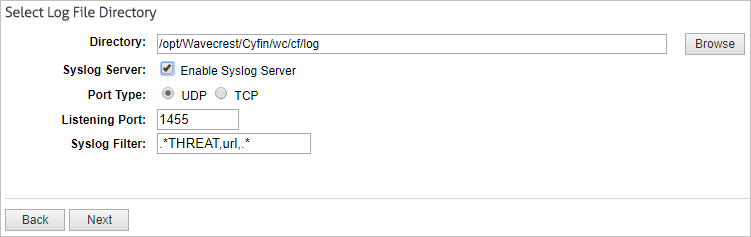
In Cyfin VM, when configuring the Cyfin Syslog Server port, the port number must be greater than 1000. Port numbers 1000 and below are blocked on the VM. Follow the steps below to change the port number if it is below 1000.

The steps below apply to version 9.3.0. However, follow the same guidelines for version 9.3.1 and later.

  1. In Cyfin VM, go to Data Management – Log Data Source – Setup.
  2. Select your existing syslog log file configuration and click Next.
  3. On the Modify confirmation screen, select the check box to indicate that you understand the statements on the screen. Click Next.
  4. On the Select Log File Type screen, your log file type is already selected. Click Next.
  5. If an Information screen appears, click Next.

  1. On the Select Log File Directory screen, change the number in the Listening Port field to one that is greater than 1000. Click Next.
  2. Click Next on the following screens to complete the validation process.

Note: Steps for v943 and older are shown in video below

Additional Resources:

New Wavecrest root certificate for CyBlock customers

The root certificate has been updated from an SHA-1 to SHA-512 certificate. SHA-1 is no longer considered an adequate encryption level, and browsers are gradually not accepting it in the existing Wavecrest certificate. However, the existing Wavecrest certificate can coexist with the new certificate and does not need to be uninstalled. Existing customers must install the new certificate before upgrading.

To allow the CyBlock blocking message to render properly for blocked secure sites or to permit users to access allowed secure sites with SSL Inspection enabled, the new certificate needs to be installed on the CyBlock server and all client machines. More information and installation instructions can be found in the Wavecrest Certificate SHA-512 Installation Guide.

If you need assistance, please contact Technical Support at (321) 953-5351, Ext. 4 or support@wavecrest.net.