Skip to content Skip to main navigation Skip to footer

Blog

V9.4.1 Release Notes for Cyfin

Enhancements

  • App/Site
    • Added new metric field App/Site to records. This metric is provided through the new version 10 list and applied during manual log import, syslog, or direct import.
    • Report Templates
      • Ability to select App/Site into top or audit report sections.
    • Dashboard
      • Added App/Site to Custom dashboard chart grouping and subgrouping.
    • Categorization – List Version
      • Added ability to toggle between new list 10 with app/site information or the previous list version 9 without.
    • Categorization – Check URL
      • Now returning App/Site information during URL lookup.
  • Metric Server
    • Added check to remove empty indices at startup and during import data delete.
  • Log File Configurations
    • Updated all Check Point log configurations to include the Drop action as a valid result code.

Correction

  • Updated JDBC connect method to properly set the catalog (database) upon instantiating new database connection.

V9.4.0.a Release Notes for Cyfin

Enhancements

  • Interactive Reports
    • Added option to disable password requirement for viewing interactive reports.
  • Hit/Visits
    • Enhanced hit/visit Algorithm
    • For log configurations with 3rd party categories, now still looking at Wavecrest categorization for hit/visit calculation.
  • Data Management – Log Data Source – SetupUpdated the syslog test page for better clarity when syslog server is accepting messages.

Corrections

  • AD Import by Field
    • Corrected the order of the nested fields as this was inverted.
    • Filter is now case insensitive
    • Filter is applied to entire AD import path. eg. If you had a group called Wavecrest with a subgroup of Development and you filtered on Development, the Wavecrest parent group would be missing.
  • Encoding
    • Fixed library to proper handle unicode characters in json encodings.
  • Logon Accounts
    • Fixed the manner in which the logon accounts modifications where being submitted from the interface to prevent browser size limitation.

What information do you require in your Cyfin reports?

If you want all Web traffic detail, enable SSL inspection on your firewall to create raw logs containing full URLs, content type, user agent, and more. Then when your logs are imported into or transferred via syslog to Cyfin, you can take full advantage of Cyfin’s high precision algorithms that increase report accuracy and detail.

V9.4.0 Release Notes for CyBlock Virtual Appliance

  • Enhancements
    • Report Templates
      • Ability to create a custom report using report templates
      • Ability to save custom report in CSV format
    • Reports
      • Running reports on a group will now include all the users in the subgroups as well. Previously only the users directly under the group were reported on.
      • Default URL format now Full URLs instead of single line.
    • Dashboard
      • Filtering dashboard data on a specific group will now include all the users in the subgroups as well. Previously only the users directly under the group were displayed.
    • PDF Writer
      • Updated PDF library
    • Active Directory
      • Added filter to importing by fields. Filtered data must be present in at least 1 of the fields for the user to be imported.
    • List
      • Optimized performance by reducing the number of timers it creates during basic lookup.
    • SSL Certs
      • Added ability to parse PEMKeyPair certificate data.
    • Blocking file extensions
      • Now checking content-disposition for actual filename when checking filename extensions
  • Corrections
    • Reports
      •  Corrected “Full URL” format not wrapping long URLs in IE and Firefox.
    • Report Timeframes
      • Corrected custom timeframe selection when editing report or creating new report in browser that is in different timezone than application server.
    • Dashboard
      • Removed duplicate data set for traffic when denied traffic is empty or only 1 series in data set.
      • Trend Charts not applying proper filter for the Enterprise group for Categories, Classifications and Traffic.
      • Color assignment for classifications when all 3 classifications are not present.
      • Updated x legend label for 24 hour time period that ends in the future to add the hour and minute of the current time.
      • Changed title when group filter is applied to be (Groupname) instead of – Groupname
      • Added Update Chart button when timeframe set to “Today”
      • Now showing group widget for additional top and trend charts.
      • Drilldown audit reports now default to Visits Only unless dashboard metric is hits.
    • PAC File
      • Removed invalid unprintable characters from PAC file template. This prevented the PAC file from matching entries accordingly.
      • Removed local copy of PAC file since PAC file content is stored in memory only.
    • Fixed typo in Monthly rotation selection in  Kiosk.

V9.4.0 Release Notes for Cyfin

Enhancements

  • Report Templates
    • Ability to create a custom report using report templates
    • Ability to save custom report in CSV format
  • Reports
    • Running reports on a group will now include all the users in the subgroups as well. Previously only the users directly under the group were reported on.
    • Default URL format now Full URLs instead of single line.
  • Dashboard
    • Filtering dashboard data on a specific group will now include all the users in the subgroups as well. Previously only the users directly under the group were displayed.
  • PDF Writer
    • Updated PDF library
  • Active Directory
    • Added filter to importing by fields. Filtered data must be present in at least 1 of the fields for the user to be imported.
  • List
    • Optimized performance by reducing the number of timers it creates during basic lookup.
  • SSL Certs
    • Added ability to parse PEMKeyPair certificate data.
  • Log formats
    • Updated Cisco Firepower logs to handle different username fields
      • Cisco FirePower
      • Cisco FirePower 6.3.0
    • Added Sophos XG
    • Added Juniper SRX
    • Updated help link for Forefront TMG (SQL Server Express)
    • Updated Syslog r80.10
      • alternate to parse both regular id and email address in user id field.
      • trim username field to remove extra spaces
  • Log
    • Ability to download log data
  • Log Parser
    • Fixed add current year flag to take into account possible
    • MT time which could lead to incorrect year being set.

Corrections

  • Reports
    •  Corrected “Full URL” format not wrapping long URLs in IE and Firefox.
  • Report Timeframes
    • Corrected custom timeframe selection when editing report or creating new report in browser that is in different timezone than application server.
  • Dashboard
    • Removed duplicate data set for traffic when denied traffic is empty or only 1 series in data set.
    • Trend Charts not applying proper filter for the Enterprise group for Categories, Classifications and Traffic.
    • Color assignment for classifications when all 3 classifications are not present.
    • Updated x legend label for 24 hour time period that ends in the future to add the hour and minute of the current time.
    • Changed title when group filter is applied to be (Groupname) instead of – Groupname
    • Added Update Chart button when timeframe set to “Today”
    • Now showing group widget for additional top and trend charts.
    • Drilldown audit reports now default to Visits Only unless dashboard metric is hits.
  • Syslog
    • Updated decoder method used to decode syslog filter which corrects the filter not being set properly.
  • Fixed typo in Monthly rotation selection in  Kiosk.

Configure Syslog on Cisco ASA with FirePOWER Firewalls

To configure your Cisco ASA with FirePOWER  firewall to send web traffic syslog messges to your syslog server, you need to define the syslog server and apply syslog logging to your access control and SSL policies.

Define Syslog server in Cisco ASA w/FirePOWER

  1. To configure a Syslog Server for traffic events, navigate to Configuration | ASA Firepower Configuration | Policies | Actions Alerts and click the Create Alert drop-down menu and choose option Create Syslog Alert.
  2. Enter the following values for the Syslog server installed (see step 1 above).
    • Name: Specify a name to uniquely identifies your Syslog server such as ‘Kiwi Syslog Server’
    • Host: Specify the IP address/hostname of the Syslog server.
    • Port: Specify the port number your Syslog server is listening on. 514 is the default syslog server port.
    • Facility: Select any facility such as SYSLOG
    • Severity: Select Informational
    • Tag: Leave blank.

Apply Syslog to Access Control Policies

  1. Select Configuration | ASA FirePOWER Configuration | Policies | Access Control Policy.
  2. On the Rules tab, click the Edit icon next to the access control policies that apply to your network’s Internet usage. For each policy:
    1. Go to the Logging tab and select Log at Beginning and End of Connection
    2. In the Send connection events to section, check Syslog and select your syslog server (defined above)
    3. Click OK.
  3. Select the Advanced tab and click the edit icon next to General Settings.
  4. Change the Maximum URL characters to store in connection events to 4096 (this is the maximum number of characters to store for URLs) and click OK.
  5. Click Store ASA FirePOWER Changes to save your changes.

Apply Syslog to SSL Policies

  1. Select Configuration | ASA FirePOWER Configuration | Policies | SSL
  2. On the Rules tab, click the Edit icon next to the SSL policies that apply to your network’s Internet usage. For each policy:
    1. Go to the Logging tab and select Log at End of Connection
    2. In the Send connection events to section, check Syslog and select your syslog server (defined above)
    3. Click OK.
  3. Click Store ASA FirePOWER Changes to save your changes.

Cyfin Syslog server should start receiving log messages and logging them to text files.

Additional Resources

v9.3.3.a Release Notes for Cyfin

Enhancements

  • Log Configurations. Updated Sophos (Astaro Security Legacy) log configuration to include useragent and referer.
  • Syslog Status. Added proper name for direct import handler and palo alto firewall handler. Previously these were just illegible object references.
  • Syslog Daemon. Replaced syslog library used when running syslog servers to a newer more advanced library. This new library increases the amount of data our syslog server can handle and can also be scaled.
  • Hits Visits Calculation. The reporter will now check the list for entries that are from known content providers and thus should always be considered hits.
  • Disk Usage Monitor. Added task to monitor disk usage on both product and metric server and email administrator if any disk usage exceeds 90%.
  • Logfile Configuration Wizard. Increased the efficiency of the log record analyzer when configuring logs which leads to quicker results.
  • Server Information screen
    • Replaced Product Disk Usage and Disk Space Available entries with single Product Root Disk Usage entry. The value for the new entry is listed as dd% (n.n free out of mm) where dd is used percentage.
    • Added Metric server disk usage section (Data Disk Usage) where we list the disk usage by the product as well as all configured metric servers. The entries are listed as key value pairs where the key is name(ip) and the value is listed as dd% (n.n free out of mm) where dd is used percentage.

Corrections

  • Hits Visits Calculation. Fixed issue with direct import of syslog data that was making all web requests hit instead of properly assessing visit probability. This was because the supplemental category was not being set properly.
  • Syslog Daemon. Line breaks are now removed from incoming syslog messages. The breaks were causing problems with regex in the log parser.

9.3.4 Release Notes for CyBlock Software & Virtual Appliance

Enhancements

  • Secure Interface. Added ability to configure custom SSL Certificate or re-new Wavecrest certificate. When Wavecrest certificate is used, a link is now provided to install the root certificate authority in order for browsers to show certificate as valid.
  • Live Chat. Renamed the “Live Support” tab in the top bar to “Live Chat”. This tab was only visible to licensed products, but is now available to all products and licenses. The chat widget that loads on each page is now visible for normal evaluation keys as well as full evaluation keys.
  • Time Frame Selection. Added new “Today” option for Time Frame Date Range selection in reports and dashboard charts. This option will include data for the entire current day. eg: Mar 24 00:00:00 to Mar 24 23:59:59.

v9.3.4 Release Notes for Cyfin

Enhancements

  • Log Configurations Wizard. When configuring a syslog data source, the product will now wait for data to start flowing through the syslog server, before attempting to analyze the records against known configurations. This will prevent the product incorrectly informing the user that the syslog data did not match any configurations.
  • Support – Patch. Created new screen to add custom log configurations provided by support to the product.
  • Syslog. Updated the syslog daemon to make use of multiple threads instead of single thread when running with protocol UDP. This should improve the performance and capabilities of the UDP syslog engine.
  • Syslog Status. Updated the syslog status information screen to reflect the number of threads that are listening (IsAlive)
  • Secure Interface. Added ability to configure custom SSL Certificate or re-new Wavecrest certificate. When Wavecrest certificate is used, a link is now provided to install the root certificate authority in order for browsers to show certificate as valid.
  • Live Chat. Renamed the “Live Support” tab in the top bar to “Live Chat”. This tab was only visible to licensed products, but is now available to all products and licenses. The chat widget that loads on each page is now visible for normal evaluation keys as well as full evaluation keys.
  • Time Frame Selection. Added new “Today” option for Time Frame Date Range selection in reports and dashboard charts. This option will include data for the entire current day. eg: Mar 24 00:00:00 to Mar 24 23:59:59.

Corrections

  • Server Information. Corrected the Data Disk Usage information to reflect the data drive for the product instead of root. This changed was also applied to the disk usage monitor.
  • Audit Summary Reports. Adjusted the report query to not include entries that are hit only.
  • Submitting Reports. Removed raw log file check when submitting reports. This check relied on log file data that may not be current and was incorrectly preventing reports from being submitted. 

Configuring Data Sources

In Cyfin version 9.3.1, the Log Data Source Setup wizard has been redesigned to improve the configuration of the product to locate and read your Web-use data when it is syslog data, log files, or database logs. The system will analyze your data to detect the data source format and present the most suitable data types. This allows you to select the best data type from the list and ensures that you get the best match available.

You will be able to select from the following data sources: syslog, directory-based, and database.
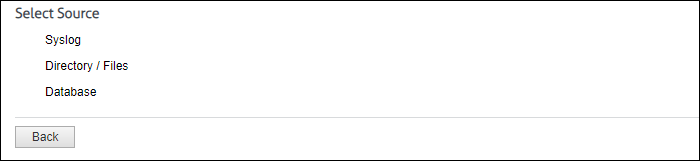
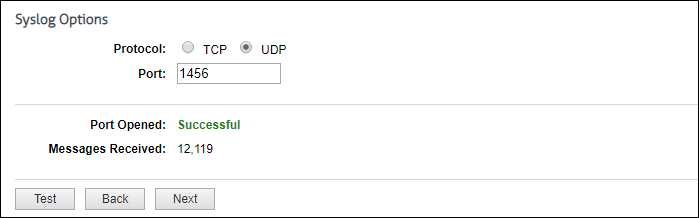
For syslog data, select the Internet protocol you want to use, and enter the listening port number. Click Test to start collecting data. If this is successful, you will see the number of messages received incrementing. Click Stop and then Next to continue.
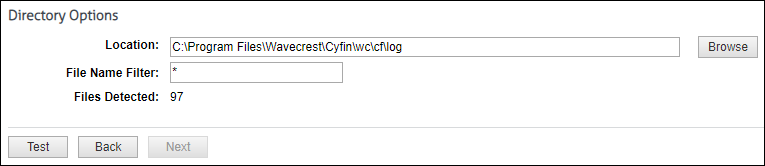
For directory-based or log file data, specify the directory location of your data files. You can also enter a file name with an asterisk to filter your log files, e.g., proxy*.txt. Click Test to display the number of files found. Click Next.
The Data Source Type page is displayed.
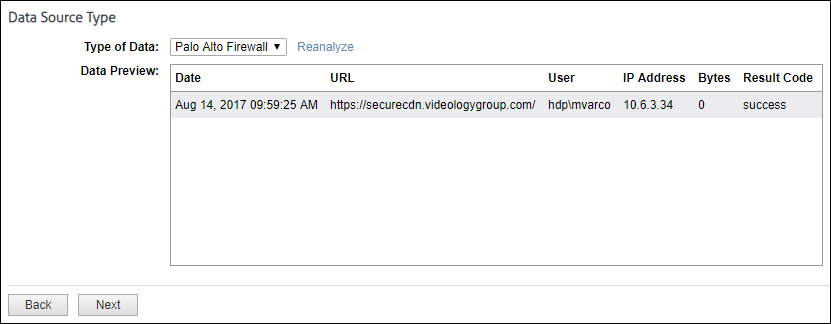
The Type of Data drop-down field will display multiple matches. As you select a data type, the data format will be shown in the Data Preview box. Look closely at the data fields to ensure that they are correct or complete.

  • You may see incomplete data, for example, if you were expecting a user name and it is missing. Click Reanalyze to see another record sample.
  • If you need to refresh the data for any reason or are still in the process of receiving syslog messages, click Reanalyze and then select the data source type again.
  • If your firewall is not in the drop-down field, but the data of another completely matches and is in the correct columns, you may select that firewall even though it has a different name. Some firewalls share common data formats.
  • If no matches are found, all syslog and directory data types will become available in the drop-down field. You can select a different data type from the field to complete the configuration process and return at a later time to change it.
  • It is easy to add new data sources to our extensive library. If you have a new data source, need assistance with multiple matches, or have no matching files, just contact Technical Support.

Also for Syslog, you can specify a location in which to keep a local copy of your data.

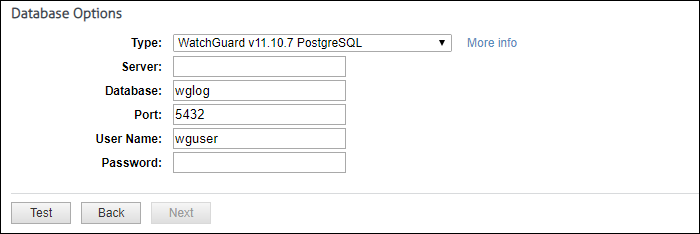
For database data, the system loads and populates the Type field with database data types. The “More info” link provides setup information on your specific database. Select the type of database and complete the remaining fields. Some fields will be populated with default values.
The last step is to give the data source configuration a name. This is helpful for identification purposes, especially if you add more data source configurations later.

If you have any questions, please contact Technical Support at (321) 953-5351, Ext. 4 or support@wavecrest.net.