URL List Options
The URL List Options page in Cyfin and CyBlock has two settings: List Version and Session Reporting. This article is for existing Cyfin and CyBlock customers who use Hits, Visits, and Time Online reports and want to know what the Session Reporting setting does.
Your Current Reports Stay the Same
When you upgrade Cyfin or CyBlock, Session Reporting is set to Disable. Your Hits, Visits, and Time Online reports keep working exactly as they do today, including any scheduled reports your HR team and managers receive.
You don’t need to change anything. There’s no deadline to switch, and these reports remain fully supported. If they’re working well for your organization, you can keep using them.
What Is Session Reporting?
A session is a period of continuous activity by one user on one website or application, from when the activity starts until it stops. Instead of counting individual log records, session reports show how often someone used a site and how long each session lasted.
Sessions are built for how the web works today. Websites load much of their content in the background, and a lot of the traffic in firewall and proxy logs comes from software rather than people, such as operating system updates, security tools, and tracking services. Session reporting focuses on user activity and groups related domains under familiar names (for example, content from fbcdn.net appears under Facebook).
Session reports also let you drill down step by step:
- Session Analysis – which sites and categories a user accessed, and how many sessions on each
- Session Audit Summary – every session on a selected site, with start time, stop time, and duration
- User Audit Detail – the URLs logged during a single session
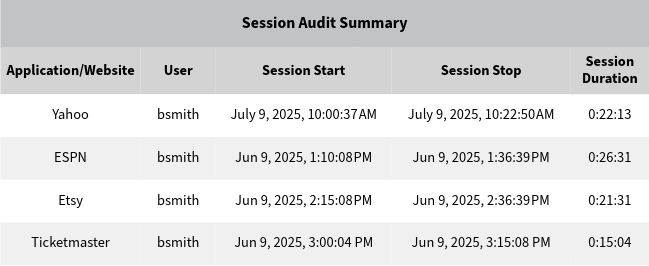
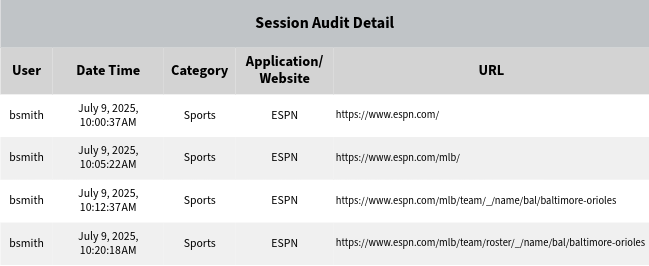
Sessions are the direction Wavecrest reporting is heading, and new Cyfin and CyBlock installations start with session reporting. They build on the same log data and 30 years of experience behind Hits, Visits, and Time Online.
Should You Enable It?
That’s entirely up to you, and there’s no rush. If your reports go to HR or management, those readers are used to the current format, and switching to new metrics is easier with a little planning. Some things to consider:
- Who receives your scheduled reports, and when would be a good time to introduce something new
- Whether you’d like to review session reports yourself before sharing them
- Whether you’d like help explaining the new reports to HR or management
Our Support and Sales teams can walk you through session reporting and help you plan a smooth transition at your own pace.
Before You Enable
Enabling session reporting is meant to be a one-time move to the new reports, so make sure your organization is ready before you switch. We recommend contacting Wavecrest Support or Sales first. We’ll answer your questions, show you what the session reports will look like, and help you plan the change with the people who rely on your current reports.
Session reporting requires List 10. If your List Version is set to List 9, contact Support before making any changes.
How to Enable Session Reporting
- Open the URL List Options page in Cyfin or CyBlock. [Confirm menu path, e.g., Settings > URL List Options]
- Under Session Reporting, select Enable.
- Click Update.
Questions?
If you’d like to learn more about session reporting or see it with your own data, contact Wavecrest Support or reach out to Sales. We’re happy to help.